
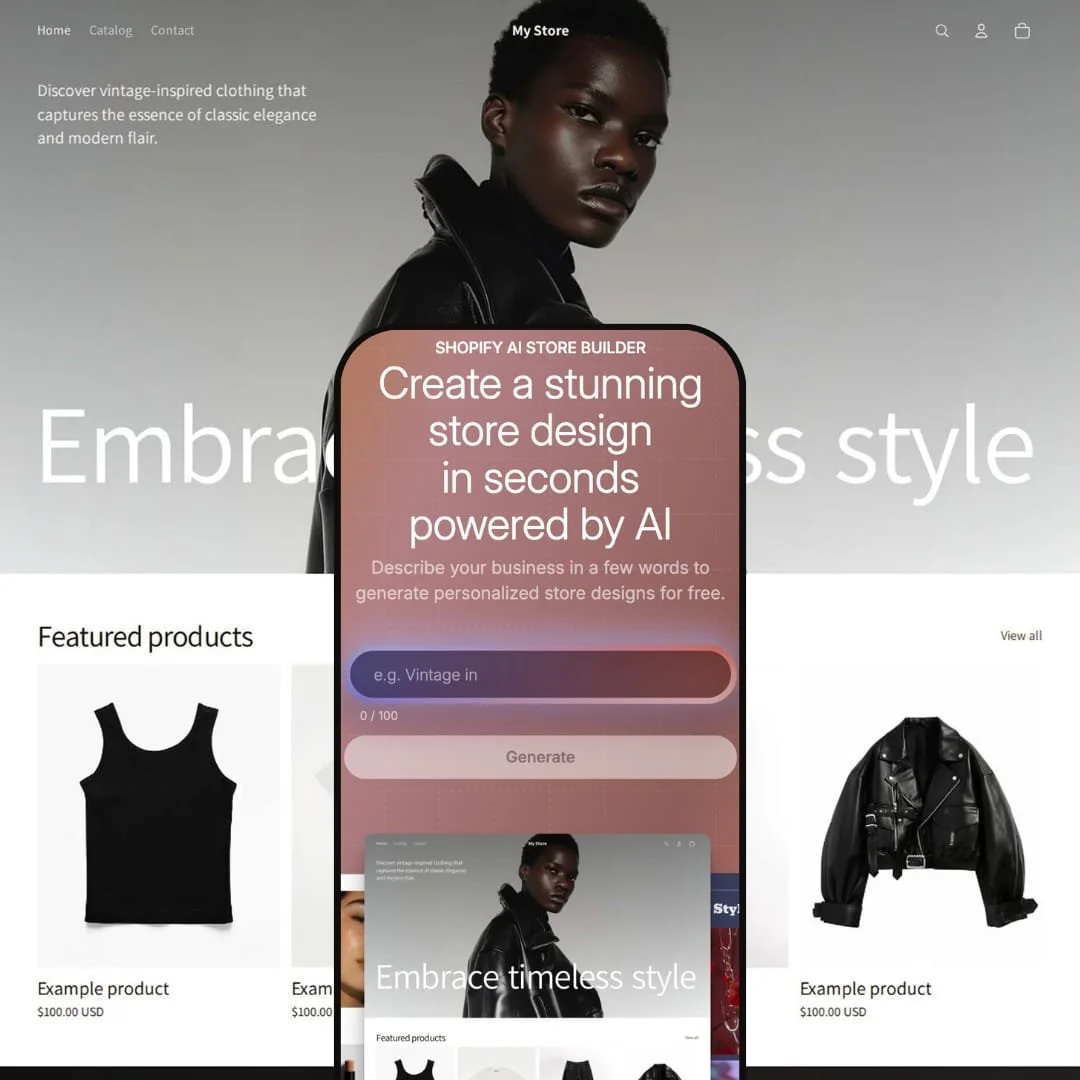
Shopify AI Store Builder:
Complete Hands‑On Guide (2026)
What Shopify AI Store Builder Does in 30 Seconds
Shopify AI Store Builder is Shopify’s built‑in AI experience that creates complete online stores from simple prompts. It’s part of Shopify’s broader push into AI‑assisted website building, sitting alongside tools like Shopify Magic for content and theme customization.
From Shopify’s own descriptions:
Shopify’s AI store builder “uses a description of your business to create entire website themes. Enter a prompt about your company or products and watch your site spring to life.”
The AI store setup tool in the admin lets merchants “generate custom‑designed themes” using “just a simple description” of their business or products.
External reviews confirm that the tool takes a quick prompt (a few words summarizing your business) and then “generates three custom templates” you can choose from.
Reuters described the AI Store Builder as generating three store layouts, complete with images and text, from descriptive keywords.
So when we say “AI Store Builder”, we’re talking about:
A front‑end flow where you type a short description, Shopify generates several complete store designs, and one of those becomes a fully editable theme in your Shopify admin.
How Shopify AI Store Builder Works
(Step by Step)
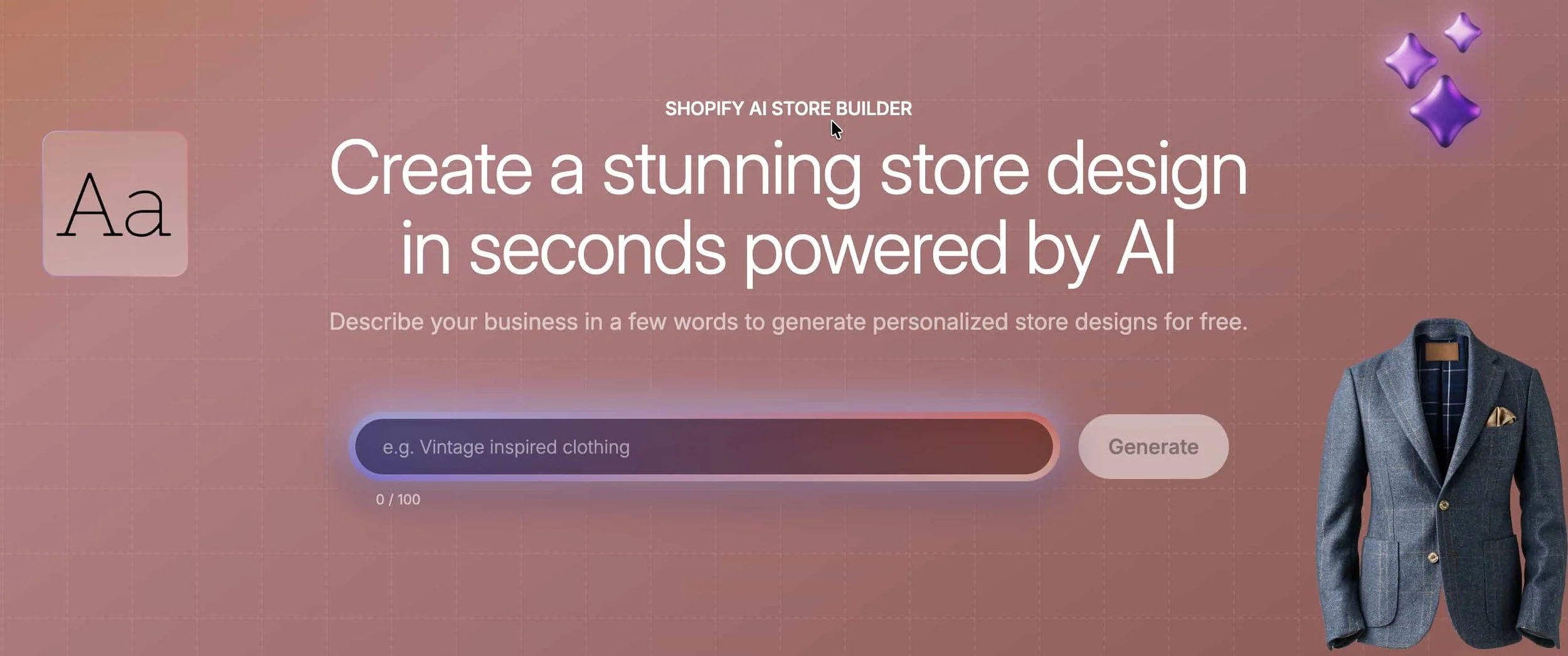
Open the AI Store Builder landing page
Enter a short prompt (≈100 characters)
Let the AI generate themes / layouts
Pick a design
Continue into Shopify, where the theme is added to your store
Customize and launch

Step 1 – Describe your business (the prompt)
The AI Store Builder’s prompt field only accepts a very short description – roughly up to 100 characters. Longer prompts either get cut off or error out.

That matches third‑party walkthroughs, which say Shopify’s AI builder “requires you to enter a short description” or “a quick prompt, a few words summarizing your business and products.”
Because of this, you should think of the prompt more like a tagline than a creative brief.
Focus on two things:
What you sell (product / business)
Style / vibe (2–3 strong adjectives)
Skip long explanations like age ranges, brand voice essays and comparisons to other brands – the field doesn’t have space and complex prompts often trigger errors.
Good short prompt patterns
[Product] store, [2–3 style words]
[Niche] brand, [style], [color mood]
Examples that stay under the real limit:
Minimalist gold jewelry store, clean modern style, neutral colors
Streetwear hoodies and tees, bold neon colors on dark background
Organic skincare brand, soft calming look with natural colors
Scandinavian home decor, minimalist, light wood and white
Colorful kids clothing brand, playful, fun and friendly
Step 2 – Let the AI generate store designs
Once you submit the prompt, Shopify’s AI:
Uses that short description to generate custom themes / layouts
Typically produces up to three free personalized themes, just like the AI store setup tool in the admin.
Fills those themes with initial homepage sections, text and imagery.
You’ll then see one or more options you can preview.
-
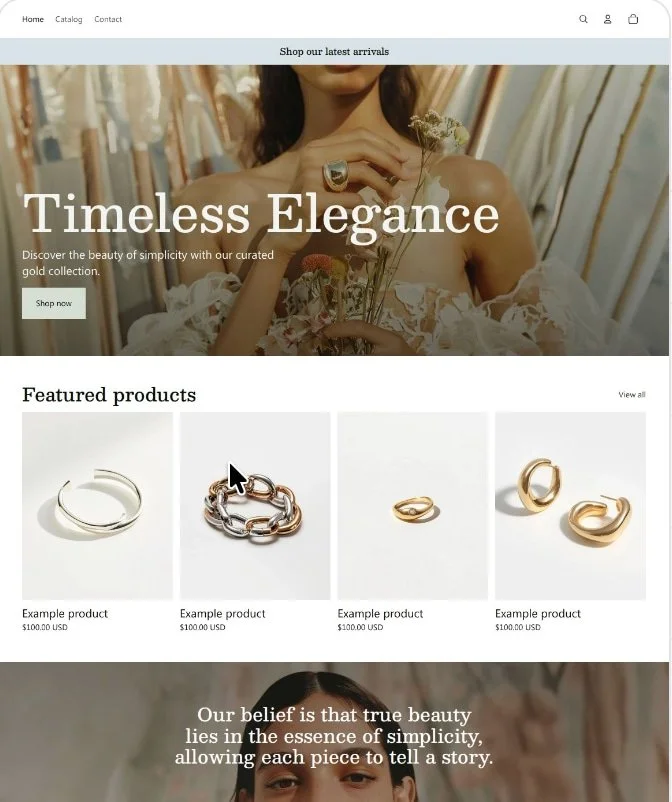
![Homepage of jewelry website featuring a woman holding flowers, with text 'Timeless Elegance' and showcasing jewelry products like rings and bracelets.]()
Minimalist gold jewelry store, clean modern style, neutral colors
-
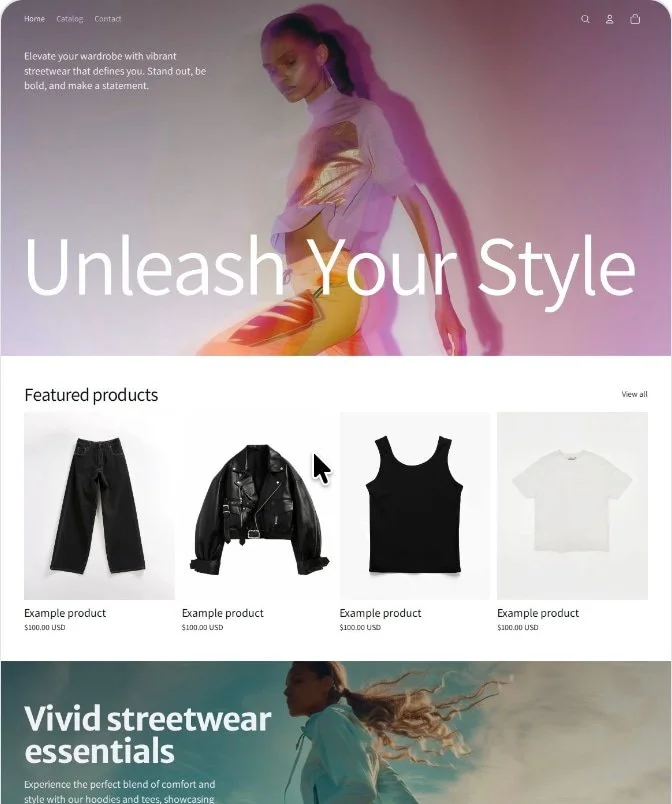
![Homepage of a streetwear fashion website featuring a model in colorful clothing with the text 'Unleash Your Style'. Below, there are featured products including black pants, a black jacket, a black tank top, and a white t-shirt, each priced at $100. A section at the bottom promotes streetwear essentials.]()
Streetwear hoodies and tees, bold neon colors on dark background
-
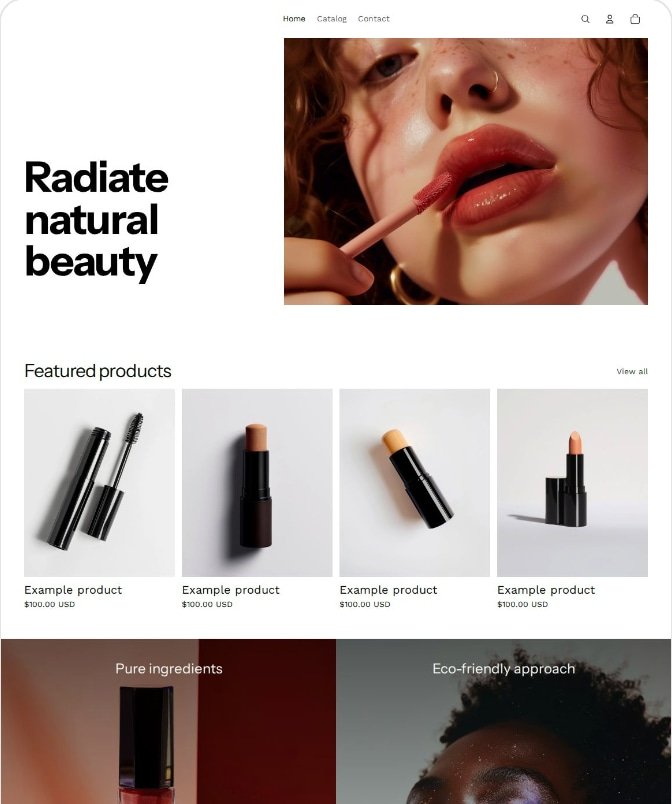
![Web page promoting natural beauty products, featuring a close-up of a woman applying lipstick and displaying various cosmetic products.]()
Organic skincare brand, soft calming look with natural colors
-
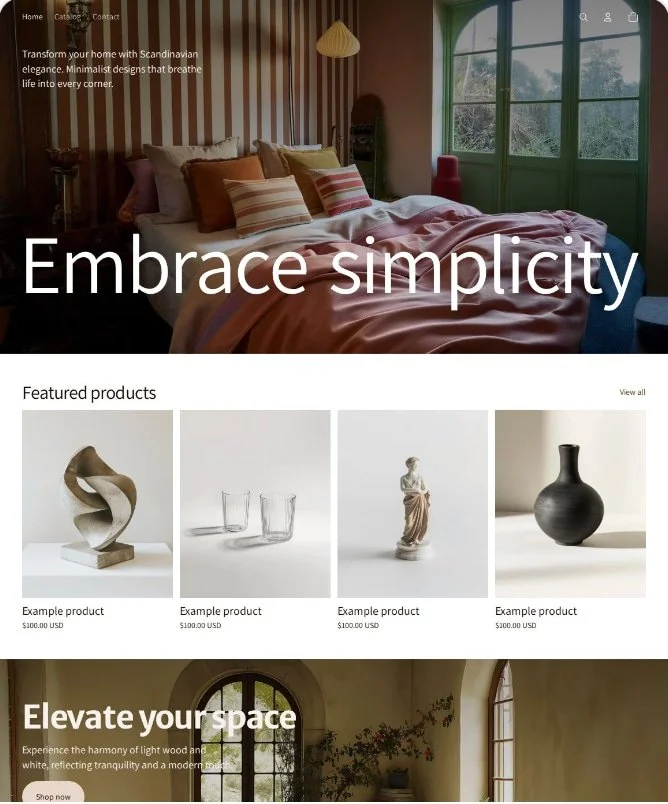
![Interior of a bedroom with a bed, decorative pillows, a striped feature wall, large window, and modern decor.]()
Scandinavian home decor, minimalist, light wood and white
-
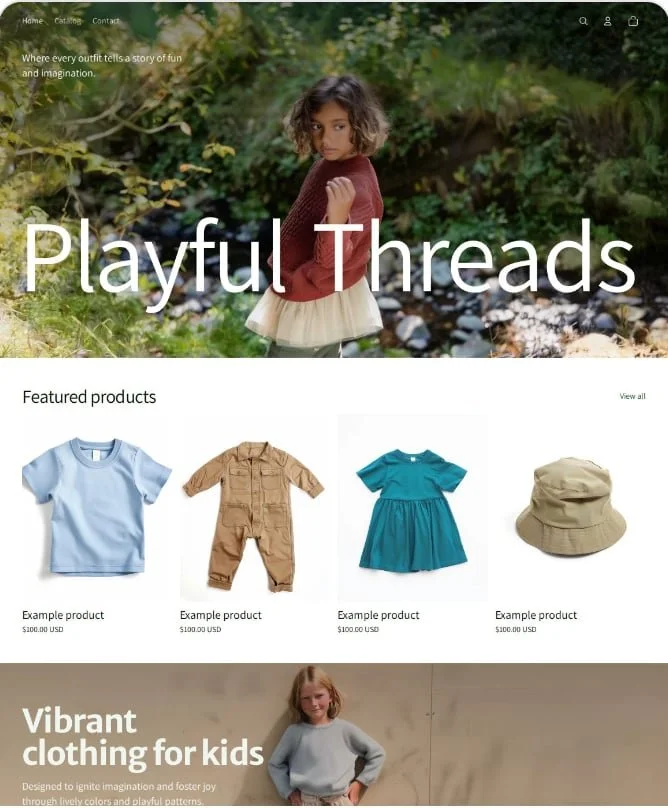
![A children's clothing website homepage featuring a girl in a red sweater and beige skirt standing outdoors near a creek surrounded by greenery with the text 'Playful Threads'.]()
Colorful kids clothing brand, playful, fun and friendly
Step3 – Choose a layout and move into Shopify
Pick the layout that feels closest to your brand. Shopify will then ask you to:
Start a free trial or
Log into an existing account
Once you’re inside the admin, that AI‑generated theme appears on the Online Store → Themes page, similar to any other theme you’ve added.
Step 4 – Open the Online Store Editor and tweak
From the Themes page, clicking Customize opens the standard Online Store editor (Online Store 2.0). This is where you:
Reorder sections
Edit text and buttons
Adjust colors and typography
Add or remove blocks and sections
Step 5 – Finish store setup
From here you still need to do the usual Shopify basics:
Add products and collections
Configure payments, shipping and taxes
Add a domain
Create legal pages (policies, terms, etc.)
Pros.
〰️
Pros. 〰️
✚ Very fast setup
From short prompt to usable store in minutes, not days.
✚ Beginner‑friendly
No design or coding skills needed to get a decent starting point.
✚ Integrated with Shopify
You’re still using Shopify themes, Online Store editor and apps; no weird external platform.
✚ Included in your plan
AI store setup is part of Shopify’s feature set for eligible English stores, not a separate subscription.
✚ Perfect for MVPs
Great for testing product‑market fit or running quick experiments before investing in a custom design.
Cons.
〰️
Cons. 〰️
🚫 Short prompt limit
The real tool only accepts very short prompts (~100 characters). You have to describe your brand in a sentence fragment, not a full brief. (Confirmed in hands‑on testing; supported by third‑party descriptions of “quick prompts” and “few words”.)
🚫 Generic if you don’t customize
Everyone else can type “minimalist jewelry brand” too; without editing copy and images, your store will look and feel generic.
🚫 English‑only
AI theme generation is currently limited to English storefronts, per Shopify’s help docs.
🚫 Not a replacement for premium themes
Complex catalogs, heavy content strategies or strict brand guidelines still require careful theme selection and often custom design.
Who Should Use Shopify AI Store Builder?
-
First‑time merchants who want a professional starting point quickly
Dropshippers and product testers who need to spin stores up and down fast
Local / offline businesses going online that just need a clean, simple store
Agencies / freelancers who want to prototype concepts for clients in minutes
-
Established brands with strict visual identity – Treat AI results as rough drafts, then refine heavily or move to a custom theme.
B2B and complex stores – You’ll still depend on well‑chosen themes, custom layouts and sometimes development.
Non‑English markets – Use AI to get structure and then manually translate or rewrite all text.
FAQ
〰️
FAQ 〰️
-
👑 No. It’s a flow layered on top of Shopify’s AI store‑setup / theme‑generation tools. Those tools are available on trial, Basic, Grow and Advanced plans for English storefronts. There’s no separate AI subscription.
-
📱The current builder only accepts short prompts (roughly up to 100 characters). If you paste a long description, it either gets truncated or triggers an error. Treat the field like a tagline: product + 2–3 style words, not a full brand story.
-
🎨 First, simplify your prompt: shorten it, remove brand names and extra instructions, and try again. If a very short, neutral prompt still fails, it’s likely a temporary Shopify issue – retry later or in a different browser.
-
⚡ Yes. AI‑generated themes behave like normal themes in your Theme Library. You can install another free or premium theme later and keep all your store data.
-
👕 They’re two surfaces for the same underlying idea. The admin feature (“Design your store in seconds”) generates up to three themes from a short description inside Shopify. The AI Store Builder landing page lets beginners and affiliate traffic start that process from outside the admin.